
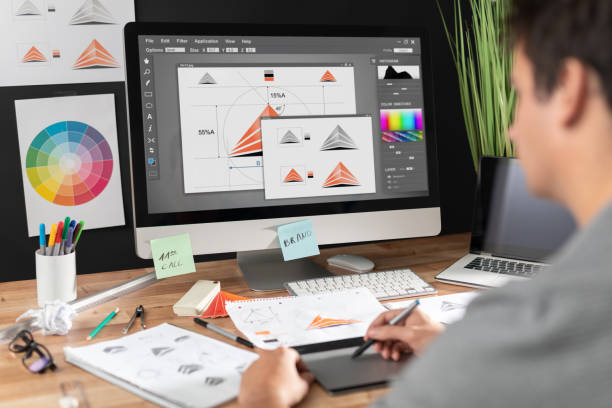
Introduction The difference between UI and UX Design, what exactly is it? They both sure do sound the same, but are they really different? Let’s get things straight. As mentioned earlier, both concepts seem to be very similar due to their names. You may think – what’s the difference between them? To know that first of all we must know what UX Designs and UI Designs are. Although their professional similarities are almost the same, they have different roles. What is UX Design? It is a User Experience Design that designs products both in virtual and physical ways. Don Norman is the first person to coin the term User Experience during the late 1990s. UX is the interaction between the user and a product or service. This is the process of developing the interaction between the facets of a company and the user. UX Design is a non-digital practice but used and defined by the industries digitally. It’s all about the feel of the experience. What is UI Design? UI Design is all about the look, feel, presentation, and interactivity of a product. UI Design is strictly based only on digital means. To exactly define what UI Design is, everything we use has some connection with User Interface Design. For example – the touchscreen in your smartphones or the touchpad you use to select a cup of coffee in a shop, book a train ticket, and other similar things we do. A few other examples are – websites, apps where it’s all about the feel, the look, and the interactivity of the product. It should be very carefully handled. Usually, a UI Designer considers things like the icons and buttons, spacing, imagery, responsive design, typography, and color schemes. Difference between UX and UI Design – The Obvious Ones UX and UI are the most confusing terms. Most frequently people take its meaning interchangeably. But both go hand in hand. UX Design deals all with the overall feel of the experience, while UI Design is about the product’s interface look and function. A UX Designer should have in mind the user’s entire journey to solve the problem. Their works are mainly based on the problems that arise from the user’s point of view. They create wireframes that are believed to be bare-bone blueprints for the product. The UI Designer gives life to the designs that are built by UX Designers into the visual designs and makes them digital. UI Designers make the entire journey possible. Differences Between the UX and UI Design – More Specific UI deals with the interaction between the end-user and the products, while UX design deals with the functionality and the purpose of the design UX has direct communication with the users and it can make changes with the users’ comfort and correct mistakes easily. However, UI has no connection with the users directly; they must have a continuous watch on the users to understand their needs and satisfaction. UX Design carries out the whole project development and ideation. UI offers a complete finished product to the users. The differences in the colors they use for designing usually UI Designers use all types of colors while UX Designers use only 3 main colors white, gray, and black. This is because when a UI Designer creates a navigation bar, he wants it to be colorful to attract users. But UI Designers will not have many tough jobs adding colors just note left would do so. The tools used by UI and UX Designers: For UI designers, designing an image is of primary importance, so they use tools like Flinto and Principle. While the UX designers use wireframes which makes it simpler to provide the designs. And tools like Mockplus, Balsamiq, Axure are helpful for UX Designers. What tells you that UI is not UX? Interfaces are made beautiful by UI while useful by UX. They are a complement to each other UX Design is the primary design that precedes the UI Design which finally gives a complete design. UX is made to achieve goals whereas UI is to connect with the users’ emotions, satisfaction, and thoughts. UI is connected to the interface while UX is everything of the design.UI Designer’s key responsibilities: It’s all about the design’s look, feel, the work’s responsiveness, and interactivity of the product with the user. And the responsibility of making the website intuitive. Key Responsibilities – UX and UI Designers UI needs critical thinking and UX needs convergent thinking. However, both need creativity. Only the most creative minds can interpret the difficulties faced by users. Creativity will further enhance the usability of an application. The UX and UI departments have to work together to keep each other informed about the project’s progress and come out with innovations that benefit the users. Conclusion I hope you understood the difference between Ui and UX Design, in short here is what you have to remember – UI and UX are interlinked to each other and they work best together. One can’t exist without the other, but at the same time, both terms can never be interchangeably used.

UI Design – A BASIC GUIDE
Introduction – UI Design UI Design stands for “User Interface Design”.This is a digital procedure. Designers use it to build interfaces, based on their looks and styles.UI encloses both the appearance and interactivity of an App. A UI Designer must follow certain criteria to create a design. To put it in an easy explanative way, A UI Designer must see what to put on the page. And the change in the button colors when you click on them Ui design, however, is very different from UX Design. Having an understanding of the difference is very important. Know more about the difference between UI and UX Design. Different forms of user interfaces linked with UI Design There are three different types, they are Graphical user interfaces(GUIs) Voice-Controlled Interfaces(VUIs) Gesture-Based Interfaces Graphical user interface It is interaction with electronic devices through the internet. Their main use is primary notions, command labels, and text navigation. The desktop of a computer is a Graphical user interface. The graphical user interface deployed commercially in Apple’s Macintosh and Microsoft’s Windows operating systems during the 1970s. A problem that came up regarding the inefficient usability in command lines led to the development. Developed in the laboratory of Xerox Palo Alto, it is the best programming language for Graphical user interfaces, are C# and Java are the most preferable languages that are being used. Others that may be considered are Python, HTML5, and C++. Examples of Graphical User Interfaces Sketchpad which was developed in 1962 on the MIT campus by Ivan Sutherland, is found as the very first computer-aided graphical design program. This had the features that use a light pen which enables the users to create in both real-time and coordinate axis in engineering drawing. The real-time user examples of Graphical user interface which are very interactive applications to the users such as, ATMs, video games, smartphones, check-in, self ticketing, and desktops. Voice-Controlled Interface Its speech interaction with computers makes it possible for speech recognition, commands, and spoken replies from virtual speech assistance. Examples of this type of user interface are Siri speech assistant in iPhones, Alexa on Amazon devices, and a lot more of the same type. The first-gen voice user interface was introduced in the year 1984 by SpeechWorks and Nuance. These were done using the Interactive voice recognition(IVR) systems. Usage of the same design guidelines for both GUIs and VUIs is an impossible task. This provides a roadmap for the business. The smarter we design the VUIs the more experience and results we get. If they are up to reading a human’s psychology what else does this technological world need. Every VUIs should be designed with excellent spoken and listening skills to make the required task possible and easier in all ways. Examples of Voice Controlled Interface Siri Alexa Cortana Google Assistant Real-Life Uses of The VUI – Video User Interface VUI For Hotels This can play a vital role in the hotels because when tourists come in, they would look for new, restaurants and lots of such needs it can even help them in their works like controlling the AC temperature, ordering food from the hotels, cafe. VUI for Workspace This is another main use of the VUIs. If we have VUIs assistants work becomes simpler, easier, and doesn’t consume much time. We need to search, spend time looking for what we need. However, when VUIs are around and are used your job is easier a voice note would make everything much simple. Even it can make u learn things easier and faster. VUI for E-Commerce It enables the users to do hands-free shopping and makes this job also easier. If you ask for something you need, it provides you with the best matching option. Gesture-Based Interfaces It is the recognition of gestures with which interfaces are operated. Gestures like tilting, tapping, shaking, and physical actions. What criteria must UI designs match to the needs of their customers: UI Design should satisfy the user’s satisfaction. It must gain users trust UI Design must communicate brands and should be connected with the emotions of the user. Gesture-Based Interfaces This has become part of everyday lives. Gesture-Based UI is the recognition of the physical motions that are made by the users and their responses. The touching, scrolling, pinching, rotating, moving everything comes under this. The most common places where we use Gestures-Based UIs are smartphones. Starting from tablets, Smartphones to smart mini-laptops everything runs under gestural UIs. The most recent innovation in this technology is the invention of eye movement recognition. The most recent smartphone, Samsung Galaxy S4 is the latest smartphone that has been invented with the introduction of eyeball movement. In this, the screen scrolls itself recognizing our eyeball movements. UI DESIGN PRINCIPLES Be Conscious of Consistency keeping in mind the consistency of the work we do, we must take in both the internal and external consistency of work. We must check the colors we use, the typography, animations, and every basic design guide. For instance, when we talk about internal consistency, if a user wants to fill a form with two different pages to be submitted and the form has ‘send’ as a button in one of its pages and ‘submit’ as another, it leaves the page users confused. so every small thing must be noticed and to be done with consciousness. External Consistency to be clearly explained, If a user wants to visit the home website’s page, he/she must get a home page option in their page but think if it’s given house instead, the users will be left in confusion. So every action must be conscious and consistent throughout. Make users feel comfortable with controls Users must feel easy and feel comfortable without difficulties and hesitation. For example, If users want to close the dialogue box that pops out, it should be made possible to make users feel in control and take their own extra time in exploring the things. Provide feedback to users in UI Design While we provide feedback to

GTmetrix Speed Test – How To Run It?
Introduction – What is GTmetrix All of you are eager to learn how the GTmetrix speed test works, and I’m aware of that. But before we get to the main picture, let me explain what GTmetrix is. GTmetrix is a web performance analysis and monitoring tool that helps you test your website speed and discover optimization opportunities It is a very easy-to-use tool. It gives you a diagnosis of the loading speed of your website. Along with that, it also indicates how to solve the elements that slow it down It gives you a very detailled reports about the performance indicators. Using this, you can do the appropriate corrections. Thinking of upgrading your business? Learn why E-Commerce is absolutely necessary for your business. Here are some of the biggest factors to consider. NUMBER OF TESTS on GTmetrix Speed Test To get a really good comprehensive set of data, you need to do a whole lot of speed tests, preferably at different times throughout the day. The ideal would be to schedule an hourly test and leave it running for about a week or so. The reason for this is your website’s performance will change throughout the day, depending on your visitor count or even the usage of your server box if you’re on a shared host. The actual load speed given in seconds may change over the course of a day (or even weeks), some of the things GTmetrix can reveal — such as many of the recommendations it will yield on how to speed up your website won’t change with time at all. TEST LOCATIONS The proximity of your site to the test location (or a real human visitor) plays a big role in your test results. Because of that, the location you test your site from makes a big difference. In general, you want to pick a test location that’s as close as possible to your target visitors (which should also be close to the physical location of your hosting server). If your website only targets one location, all you really need to care about is the test results for that location. To be able to choose the location from which to test your site using GTMetrix, you’ll need to register for a free account. TEST DEVICES/CONNECTION SPEEDS GTmetrix speed test will let you test different connection speeds for free, but you’ll need to pay for a premium account if you want to test using a mobile device. Connection speed is another important consideration. Not all of your visitors will be using ultra-fast wired connections. For example, they could be browsing from their phone on 4G — that will also lead to slower page load times. If you want to get an accurate picture of how these visitors experience your site, it’s useful to experiment with different devices and connection speeds. How to Use and Understand the Basic GTmetrix Speed Test? When you register for a free GTmetrix account, you open up a ton of new configuration options that’ll help you to address the considerations we discussed above. Locations — Dallas (USA), Hong Kong (China), London (UK), Mumbai (India), Sydney (Australia), Sao Paulo (Brazil), Vancouver (Canada). Test devices — Chrome (Desktop) and Firefox (Desktop) for free. With a paid plan, you can also test Chrome on a Galaxy Nexus Android device. Connection speeds — various options from Broadband down to 56k (dial-up — remember those days?). Once you’ve created your free account, you can: Enter your site’s URL in the box. Click the Analysis Options accordion button to expand the extra options. To get an accurate picture of your site’s load times, you should make at least two choices: Select the location nearest to your target audience using the Test URL in drop-down. Select Broadband (Fast) in the connection drop-down. This will use a connection speed that’s around the average for the USA as a whole — you can choose a different connection speed if that fits your needs. The summary box contains five pieces of information: Fully Loaded Time — how long it takes your site to fully load (this is the most important number). Total Page Size — how large your site is. Smaller is better. Requests — how many HTTP requests your site requires. Fewer is better. PageSpeed Score — a quick approximation of how optimized your front-end site is based on Google PageSpeed. YSlow Score — a quick approximation of how optimized your front-end site is based on a different set of metrics from YSlow. Conclusion Website Content management tools are up and coming. Most businesses have adapted to the new era. We strongly suggest you give it a try. GTmetrix can be a huge asset to your business if used well. Well, if you’re looking for more – check out the list of E-Commerce tools your business must use Have a good day!
PPT Creation – Learn it the Right Way!
Introduction PPT Creation is arguably one of the easiest things to do. But just like everything else, there’s always a beginning. Let’s now quickly learn the trick of ppt creation. Powerpoint presentation is an effective and efficient way to deliver our intention to our viewers. In other words, PPT expresses the information in a customized way. It has its own in-built templates for easy design and planning. Powerpoint submission helps any content to enhance its visibility. Well-organized and visually attractive presentations make visitors become interested in the content. PPT displays itself on the screen as an attractive slide show. Benefits of PPT submission for Off-Page Optimization PPT submission can help the website to get inbound traffic through backlinks, which improves the page rankings. Fresh and quality content could be shared through PPT which makes others share our submission in their blogs and websites, it helps to bring quality inbound links to our website. PPT acts as a perfect tool to increase the Google rank for the website. Submitting the PPT to quality directories can help the website to get an increasing number of targeted traffic. Organizing a PPT Organizing the written content of the PPT is required to understand it with ease and to arrange the content in a flow. Identifying the main topic, arranging the slides logically to given the content in a good flow with connectivity, and finally designing the presentation is more significant. Do research for the presentation Giving a presentation is really a challenging one because the entire message is split down into key points. It is important to follow certain facts before creating a professional PPT. Below are the facts to be followed in order to create an effective PPT. Research for the presentation: Develop the PowerPoint presentation ‘thesis’ Identify the most relevant points Write an Outline for a PowerPoint presentation Sit down to write Start strong and finish strong Create a compelling hook and angle Turn the main points into mini hooks Get the presentation design right Choose an engaging PPT template design Work with relevant presentation graphics Keep it consistent Format the slide text for readability Keep it simple Structuring a PPT PPT structuring is needed because the presentation must grab attention, plus follow a logical order, and flow with clarity. PPT should have the following: Intro slide: Title of presentation, date, presenter name – short description of the title Outline slide: Table of contents / main topics Content slides: Detailed information as key points Use of images – a picture is worth a thousand words Final slide: Have the last slide be meaningful – The Conclusion and summary Provide contact information to follow up Creating a professional PPT slide design Creating a professional PPT slide design must reflect the “Keep it straight and simple” concept. Few things to be remembered while creating an effective professional PPT are as follows, Compose the slides carefully Use of Basic slide template Select font style, size, and color carefully Use contrast color for background and text Use only key points on the slide No full sentences on the slide Have images in the slides since visuals grab the viewer’s attention more Use a good animation for better understanding Conclusion I hope ppt creation is an easy task for you now. A good and professional PPT will always create a good opinion about the content and its provider. It builds trust and paves the way to proceed with the product/content of the service provider. It promotes business development and follow-ups.

Advertising on YouTube – A Simple Guide
Introduction Advertising on YouTube has become really popular in recent times. Learn about it to stay on top of your game. But why YouTube? YouTube is not an unfamiliar word to any of us. It’s the second most popular website in the world, right behind Google. This can be one of the main reasons for you to kick start your Ad Campaign on YouTube. The benefits you will gain in doing so can be huge! Paid YouTube Advertising is 84% more likely to receive viewer’s attention than TV advertising. If you know your numbers right, you’d realize the effectiveness of YouTibe Ads. Just like every other ad campaign on social networking sites, YouTube too has a wide range of formats and features that you can use for your business. There are also a few tricks that will give you a major head-start. We will be covering all of these aspects as we go. In this blog, you will be learning:- What are YouTube Ads? Types of Ads on YouTube How to set up your YouTube Ad Campaign Tips and Tricks to Boost your YouTube Ad Campaign What are YouTube Ads? YouTube is the second largest search engine, after Google again. This obviously means any marketer would choose to utilize the platform well enough. The developers have understood this dynamic and have crafted YouTuve to cater to the needs of businesses and customers. YouTube Advertising for business can help you target your audience based on their search history. Here’s how it works, if a customer is looking for recliner seats online, YouTube has the means to track that and display ads related to recliner seats. This will drive your customer to click on the CTA button and interact with your advertisement on YouTube. These Ads typically appear before or in between a video that’s being watched by the user. Ads also show up on your search results page. And lastly, YouTube ads are a part of your Google Ads Campaign. So you’ve understood what YouTube Advertising is, I’m sure you’re itching to set up your campaign right away. But before you do so, there are a few things that you should get your head around to make the best out of it. Types of Ads on YouTube There are 6 different types of Ads on YouTube that you can pick from for your campaign. For optimal results, having an accurate understanding of the YouTube Ad Formats will take your business to a whole new level. The following are the types:- TrueView Ads Non-Skippable Instream Ads Bumper Instream Ads Sponsored Card Ads Overlay Ads Display Ads TrueView Ads The TrueView Ad format on YouTube is one of the most preferred formats by most businesses, especially if you’ve just started your journey. How does it work? Simple, you Advertisers will only have to pay for a view if the viewer watches over 30 seconds of your Ad. Any customer who is genuinely interested in your product will decide to watch the entire ad. This will benefit you greatly since you save the cost from users who don’t view your entire ad. As we discussed earlier, YouTube tracks a user’s recent searches and displays Ads according to their likes. So the chances of finding appropriate customers are good numbers. The duration of YouTube Advertising or TrueView Ads starts from a minimum of 30 seconds and can go on to a maximum of 12 minutes. There are two different variants that come under TrueView Ads:- TrueView Instream Ads These are the Ads that play before the video that you chose from your search. You normally get a time card for 5 seconds after which you can skip the video. TrueView Discovery Ads These ads are displayed on your Search Engine Results Page on YouTube. They are displayed with the other videos, except that they have a card that mentions “Tag” under the thumbnail. Non-Skippable Instream Ads I think the name gives it away. Non-Skippable Ads Instream Ads are ads that play before the video you selected. Just like the name suggests, you cannot skip these ads. They are typical of 15-20 seconds in length. Advertisers will have to pay on a CPM scheme, this means that you will have to pay for every thousand views. If you’re looking to majorly promote your business and you feel you have a very good marketing campaign, this will be your best pick. Bumper Instream Ads YouTube Bumper Ads are arguably the shortest form of advertising. You are allowed to post an ad that is of 6 seconds (maximum). Pretty tight isn’t it? You must be thinking it’s not of much use. You cannot pitch in your idea, or get a customer testimonial through. However, if your business operates on a large scale, 6 seconds are more than enough to make a statement of presence. It’s not so helpless after all. Sponsored Card Ads Have you seen a small “i” icon pop up at the corner of your screen? They are your Sponsor Card Ads on YouTube. Clicking on them will lead to a few pop-up cards being displayed on your screen. These cards will also have CTA (call-to-action) buttons. Using the CTA buttons, you can link another video on YouTube or even other products through Google Shopping. This way, you can get your leads to directly go to your website and complete a purchase. Overlay Ads Overlay Ads on YouTube are text-on-image or just plain text banners that appear horizontally on the bottom of your screen. Display Ad When you’re watching your video, YouTube is friendly enough to give you a few suggested videos. Under these suggested videos, you will find the YouTube Display Ads. These ads come in different shapes and sizes and it’s fair to say that this format has been in the game for a good while. You must be well acquainted with the types of Ad Formats on YouTube, now let’s move on and see how to set up a campaign. How to set up your

What is Hubspot? – A Detailed Guide
Introduction There’s no denying the key question here – What is Hubspot? Hubspot is a popular Content Management System. It is the preferable choice for marketers and developers. Its flexibility, secured interface, and ease of management without compromising on the strong content creation features make it a good choice for the users. Taking your business to the internet world can be terrifying at first, but learn about E-Commerce and its advantages to make an informed decision. We will now have a brief look at HubSpot and its features. All About HubSpot Any organization planning to develop a powerful web presence along with strong marketing features which in turn would promote the growth of the organization can have HubSpot SaaS CMS as a choice for content management. Content creators who have no expertise in computer programming to develop a website prefer Hubspot. This is because this content management system is easy to use as well as user-friendly where the developers can build and edit the website or the content while enhancing the same with more functionalities. HubSpot is the one-stop platform to develop, handle, alter and analyze the web contents in a perfect manner. It is arguably the fastest content delivery network. This is because its server hardly lags to the visitors despite their different locations. This tool facilitates the flexible development of websites with its technological features, templates, and modules. The drag and drop option makes it, even more, easier for marketers to create and publish content. The Advantages of Using HubSpot Speed of the Site The speed of the site is a prominent factor when it comes to the user as well as the SEO. A slowly working website is not what you would need to take your business to the next level as it frustrates the visitor while also lowering your ranking. A range of features of HubSpot like CSS files put together, compact JavaScript, compression of images, HTTP/2, and many more make it possible for the websites to load faster. Security Worldwide content delivery, Firewall for the web application, Age directives of HSTS Max, and SSL are the reasons for which the websites made with HubSpot are of utmost safety. HubSpot sites are strongly protected from any kind of cyber threat. The tool also permits the detection of any peculiarities and it also keeps updating itself regularly. The only limitation is that you may not be able to edit the fundamentals of the system or obtain access to the content in the database directly. But still managing the plugins, hosting, updates, scaling or privacy is a cake-walk because the tool facilitates all these within the content management system. Features & Functions of HubSpot As a jackpot to the sales and marketing organization, HubSpot provides a wide range of functionalities and attributes. Each of them is explained briefly here. CMS Building Blocks The fields, templates, themes, and modules are referred to as the building blocks of HubSpot. The developers are usually concerned about working on these within this content management system. And so it is essential to understand how each block is correlated to one another. Themes The themes from HubSpot are marketer-friendly as they offer an amazing and easier experience when it comes to editing. It is usually combined with a lot of assets a developer would expect. Some of the features of themes are files containing codings, technologies, tools, and workflow. Templates and Modules The templates of the HubSpot content management system facilitate the controlling of the functionalities, layout, and style of your website. Modules are the blocks that are available for reuse. It includes CTA, form, image, rich text, and many more. Many modules and groups of modules make up a template. Some of the default and general modules are buttons, CTA, headers, images, and rich text. These are the foundational components. Despite this, you can also use many more elements to make your web page look more aligned to the purpose of creating it. If you like a particular module, you can use the same on any number of templates. Likewise, one particular template can be applied on different pages. Global content All the contents that you create only once but use multiple times on different pages are called Global Contents. For example, the logo and the header are the global contents. Any of your content can be global content but once it is made, it cannot be edited in the content editor interface. But it is possible to edit it with the design tools. Fields The options available in this content management system for altering the parameters included in the modules and the themes are called Fields. Boolean, choice, file, text, and URL are some of the types of fields. There are other complex fields as well like inbound links to direct the visitors to any other content page or forms. The HubL Language HubL or HubSpot Markup Language is the language for the HubSpot content management system. It is Jinjava’s extension and is an engine for templating. HubL is a Jinja-based language. To make it more clear, HubL is not like the usual programming language. HubDB HubDB is HubSpot CMS’s conceptual data store. The representation is similar to the spreadsheet where you can find cells, columns, and rows. To access UI go to “HubDB” in the “Files and Templates” option which is found under the “Marketing” menu. HubDB API helps to extract data into the CMS. Website Pages and Landing Pages Templates are the basis of the pages like website pages or landing pages. Any alterations are made to the particular page or even to the template alone. All the information regarding the website is presented on the website pages while on the landing pages marketing offer or campaigns are included. When it comes to the functionalities, both the pages have got similar functionalities. Blogs In the HubSpot content management system, blogs are usually to view either the lists of the post pages available on the site or the individual

What is Wix? – A Comprehensive Guide
Introduction Wix is one of the well-known content management sites. Serving around 10 million people throughout the world, this site meets up to 45000 fresh sign-ups each day. Wix came into existence in 2006. Since then, it has been the favorite choice among many other sites for its flexibility and ease of use. This quick web designer has got the handy drag and drop option to include all the features your website will need. Anyone in need of a clean elegant website for their small business, restaurant, online store, blogs, or photographs can choose Wix with no second thoughts. Wix also offers Wix ADI or Wix Artificial Design Intelligence. It is capable of designing an extraordinary website based on your needs. All you gotta do is just enter the basic details like the type of business you run, contact details, and the online appearance. After your site is generated, you can also make changes. Wix ADI is suited for the users who are not the tech-guy type or the ones with busy business works. Even the bloggers with time constraints can go for Wix ADI. Getting to Know Wix Registration and Pricing Before getting into registration, let’s talk about the pricing of the plans on this content management site. The price ranges from $18 to $56 per month. You can also opt for the Enterprise plans which come with custom pricing. Combo Plan is one of the preferred options for small businesses. It is fairly priced, i.e. worth $18 per month and can remove ads, and offers a custom domain name for a year. If you are planning to open a small online store, you can go for Business Unlimited which is worth $33 per month. If your store is going to be larger, then opt for the VIP plan that costs $56 per month. Now it’s time to register your site. Enter the basic details like name, email, password and you will be directed to a couple of pages where you should select the appropriate options from the drop-down menu. As you move further, you will end up on a page where you can opt if you wish to choose the Wix ADI to set up your site. If you do not want to, you can set it up manually. Wix ADI makes it faster for you to create a website. Templates Click on the “Create a new site” option from the menu at the right top corner of your dashboard. You should now give details about your website so that the templates relevant to the purpose of the website will show up. There are over 500 templates in the Wix Repository. Even then, if you do not find that perfect template, you can use the search bar. The only limitation of the templates is that you will not be able to change the template once chosen. But you can make edits within the template. So make sure to choose the right template beforehand. Frankly speaking, choosing the template in a content management site is the most important step to make your website look inviting to your potential visitors. This template will literally portray the visual as well the layout of your page making it functional. In short, the template partly describes your website as well as the intention of the same. Builder Interface To know about the features this page contains, just experiment with all the buttons because even when something goes in the other way, you can reverse it. The interface of this content management site allows you to edit, change and duplicate the design of the page. Despite being not very extensive, the edit feature permits you to alter the titles, images, and texts according to the chosen template. To add or edit the position, types of page, or numbers, tap on the “Page” option found on the top left corner of the interface. At the top of the page, there are a lot of tools that let you add or remove pages, create customized options for your visitors, add applications, and many more. You can even schedule your posts for publishing or draft them with the options available here. The “Design” option from the tools lets you make changes to the design of your template. It is highly recommended that you add the details of the company, portfolio, or blog to your page. You will actually be able to add these details to the preview of your page. You can simply click on any block, be it an image or text, to change or edit it. If it is a text block, you can alter the text size, font style, or any text-related features. It is the same with the images as well. Click on the image block and make changes to it. A lot of images are available in the repository. The “Add” option facilitates the addition of new sections so that you can add more information to your site. Background This content management site provides two sidebars with exclusive options for editing the pages. Click on the “Background” option from the sidebar to your left. The left sidebar is for the addition of extra features. The right sidebar allows you to delete, duplicate or rotate the additions. You can do this with the drag and drop feature as well. Pages Click on the “Manage Pages” option. You can find this option when you click on the down arrow. Another menu will appear from where you can choose to customize an existing page or add a new page. Apps and Widgets There are more than 250 applications in the Wix App Market. Anything from quizzes to taking orders, all these applications will cover up for you. The free or premium icons on the app or widget thumbnail will let you know about their category of availability. You can choose the appropriate application. Click on the “Add” option. From here you can either choose the available app or browse for the app of

What is WordPress? – A Beginner’s Guide
What is WordPress? WordPress is one of the popular content management systems that aid you in making your own blog or website. Almost around 39.5% of all the sites that you can find on the internet are powered by WordPress. This platform possesses a GPLv2 license. So it is available for free to everyone that they can make use of it or modify it for their purpose. It’s a cake-walk for you to develop your own website or blog with WordPress while managing all the contents as well. You will indeed not need any prerequisite knowledge of computer programming to use WordPress. Initially, bloggers were using WordPress prominently. But at present, the usage of WordPress has extended to creating a lot of Business websites, Blogs, Resumes, Forums, Social Networks, Portfolios, Membership Sites, and whatnot! Why Do We Recommend WordPress? WordPress, as we know already, is an open-source content management system available for free. There are a lot of open source themes and plug-ins that you can avail yourself to make your page look unique. Without being an expert in programming languages, you can make changes to how your website looks with WordPress. Themes can modify the website atmosphere while plugins can modify the way your site functions. For example, Plugins are used while developing an eCommerce store. At present, WordPress offers more than 50,000 plugins and around 5000 themes for free. WordPress is a flexible open-source CMS tool wherein you can develop any type of website while letting the same evolve in time. There are a lot of tutorials, blogs, and other sources of help if you need any in case you encounter any issues with WordPress. Getting Started Domain Names We usually use a domain name to let the users identify our website. It is a part of the URL. Choosing the right domain name might seem a little difficult. This is because if you own a brand that is named with common English words, then finding a domain name with the same words might be difficult as it would’ve been taken already. It is commonly advised that you choose a domain name that is short and crisp. Moreover what you do with your website matters more despite the fact that branding is important. If you are genuinely into branding, then you can probably register your domain so that you get legal ownership of the site. The registration, by default, is usually for one year. If you have enough funds and at the same time if you are very much serious about taking your brand to another level, then you may even get your domain registered for five or six years. To remind you about the security issues, it is always better to keep your domain and hosting account separately. If someone could get into your hosting, then there might be a possibility of your domain being completely taken away somewhere leaving you empty-handed. Hosting Packages You can choose either of the three options that are given below Shared Hosting VPS Hosting Managed WordPress Hosting Shared hosting This might seem to be a good option because you can use a single server to house a number of websites while you can afford it with just $5 per month. But still, it comes with a number of negative factors. One of them is the bad-neighbor effect. This means that any attack targeting a single website might end up affecting the other websites as well making them unavailable. This obviously affects security and is often unpredictable. Some of the companies from which you can avail the shared hosts are A Small Orange, Inmotion Hosting, MediaTemple, and SiteGround. VPS – Virtual Private Server It works more like shared hosting but it keeps away the negative aspects of shared hosting. Attacks may happen but in most cases, it is predictable because the usage percentage is equally divided between the number of users accessing the same servers. For example, four users can get access to 25% of the assets each. So the attackers will have a very feeble chance of getting access to the other websites even if they attack one website. If you have enough funds you can choose VPS. Some of the providers for VPS are A Small Orange, Linode, MediaTemple, SiteGround, and Vultr. Managed WordPress Hosting is like availing your website from WordPress.com. The whole construction of the server has been regulated to toil with WordPress effectively. This might be a safer and faster option. It provides automatic updates as well as server-level caching. Besides this, you can expect WordPress-specific support that is completely professional. One of the downsides of this option is that it is not as flexible as the other two options and some of the plugins might be disabled for security concerns. Flywheel, Kinsta, Pantheon, MediaTemple, and WPEngine are the providers of managed hosting. WordPress Installation If you have managed WordPress Host, you can probably get through this step by simply filling up a form followed by the installation of WordPress to your account. But when it comes to VPS, you are left with two options: One-click installation and Manual installation. Most of the hosts usually provide tools for making the installation easier. Even if you would like to take up the manual option, it will not turn out to be difficult. You will have to transfer all the files to the Domain folder as soon as you are done with downloading WordPress. Later, make a database and place the browser to the domain. You will now have to follow the instructions that are displayed on the screen. Themes And Plugins Plugins Let us begin with Plugins. Plugins are usually used for making the website function in a specific way. So you will have to choose a plugin depending on the type of website you want to develop. Plugins are usually correlated to the theme and the backend of WordPress when it comes to functioning. If you are to start a business website, then you can probably opt

What is Instagram? – A Beginner’s Guide
Introduction Are you one of those who have heard a lot about Instagram but are struggling to entirely understand what the hype is all about? Have a seat, let’s figure this out together. Here’s The Basics Is it just me, or is there a whole new shift in how people have decided to share their unique and exciting experiences with the world? Let’s give this a chronological thought, cave paintings, journal entries, and storybooks were some of the methods followed decades ago to store your memories. Evolution soon took over and brought photos and videos into the world. This introduction created effortless but realistic access to moments that can be cherished for life. Let’s get to business now. Instagram as of 2020 is said to be used by 1 Billion people from around the globe. In all honesty, that’s quite a large number. What makes the app so captivating? Well, that’s just the power of the visual medium. Instagram has been providing its users with a platform to share their favorite moments in the form of photos and videos. With the Billion users present, the app never runs out of content and gives you something fresh every time you decide to have a peek into the gram. That’s not all! The algorithms that the app runs specially crafts content that you might find interesting and relevant. It keeps track of your activity in the app to make it suitable for your likes. Now, here’s the cherry on top of the cake, Instagram isn’t all about entertainment. Instagram Ads is a feature offered to businesses big or small to run their advertising campaigns on the app. Instagram for Marketing and Instagram as entertainment makes it the best of both worlds. Time to Move On Instagram is not an entire stranger now, I hope you got a brief idea of what the app is about. As we go further, here is a list of things that you would learn from this blog. How to get the app Setting up your profile Making new friends and messaging on the go How the search works Uploading photos and videos Instagram for Business How to Get the App This one is a bit of a no-brainer. But here we go, Instagram can be used from Android iOS and even your desktop. Android users can download the app from the Play Store whereas iOS users can use the App Store for the same. Desktop users need not download an app, they can enjoy this forum by simply typing “www.instagram.com”. However, you cannot upload photos or videos while accessing IG from the web. Nonetheless, you can go through the content and message your pals. I’m assuming you all have opened the app on your phone, the next step is to set up your profile. Setting up your Profile Once you’ve downloaded the app, go ahead and click on the Instagram icon and wait for the app to open. You will be presented with a few options – ‘Login with Facebook’ or ‘Sign up with Email or Phone. You can choose your desired pick here and proceed further. Note: Logging in with Facebook will make it easier to find your friends since the apps get linked together. The next move from here is setting your Profile Picture, Username, and Password. You can also add a brief description of yourself under the option ‘bio’ or even add a link on your profile that will redirect users to your website. The link feature is widely used by business profiles for marketing on Instagram. It is recommended to have a recognizable profile picture and username to be easily identified among the users. Making New Friends and Messaging on the Go Once you’re signed up and ready to go, there’s a myriad of things that you can do on Instagram. The main highlights however are the opportunities you are given to meet new people and inculcate new interests. There are so many content creators and influencers on Instagram from whom you can learn a great deal from. All you have to do is click on the sign that looks like a magnifying glass and type in anything that interests you. For example, if you’re into music, typing “#acoustics” will give you suggestions for some good music. You can also type in a person’s name and find him/her on IG if they’re registered users. Once you’ve found them, send them a follow request. You can interact with them and their posts soon after they accept your follow request Messaging on the other hand is simple, click on ‘Facebook’s Messenger symbol’ on the top right corner. Enter a name in the ‘Search Box’, choose from the options displayed, and message away. How the Search Works Remember we spoke about how the content on Instagram is uniquely tailored to appeal to your interests through algorithms? It all starts with the variety of your searches obtained from your search box’s searching pattern. This way, Instagram understands what you truly are passionate about and brings it in front of your eyes. I’m sure we’re a little more familiar with the app than before. Let’s move to the bigger things now. Uploading Photos and Videos According to your moods and necessities, Instagram offers you a variety of platforms where you can post your photos and videos. Let’s quickly look at the different types of post formats that are on Instagram along with recommended specifications for IG. Posting in News-Feed This is sort of the most used posting method. Photos you upload here will be visible on your follower’s news feed as they’re scrolling down through the app. The photos you post here will be displayed on your profile, so you can post images that make your feed look aesthetic. To upload a photo/video:- Click on the ‘+’ sign and choose from “Gallery”, “Photo”, “Video”. Choose the file you want to upload. Add a suitable filter and edit the brightness and contrast of the same. Click on Next